How Android TV Box Works: A Complete Guide to Streaming Entertainment
Have you ever wondered what’s inside that small black box sitting beneath your television? If you’ve recently purchased an Android TV box or you’re thinking about getting one, you’re probably curious about how it actually works and whether it’s worth your investment. Well, you’re in the right place. I’m going to walk you through everything you need to know about Android TV boxes, from the basics to the technical nitty-gritty, so you can make an informed decision about whether one is right for your home entertainment setup.
Understanding the Basics: What Is an Android TV Box?
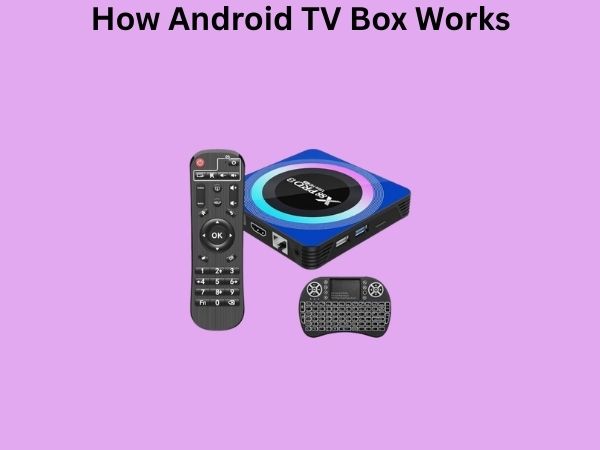
Let me start with the fundamentals. An Android TV box is essentially a small computer that connects to your television. Think of it as a bridge between your TV and the internet, transforming your regular television into a smart device capable of streaming content, playing games, and running applications just like a smartphone or tablet would. It’s a compact piece of hardware that sits quietly next to your entertainment system, quietly working behind the scenes to bring you endless entertainment options.
The beauty of an Android TV box lies in its simplicity and versatility. Unlike smart TVs, which come with built-in streaming capabilities, an Android TV box is a separate device that you can add to any television, even older models that weren’t designed to be smart. This makes it an incredibly practical solution for people who want to upgrade their viewing experience without replacing their entire television.
The Core Hardware Components That Make It Work
The Processor: The Brain of Your Device
Every Android TV box has a processor at its heart, and this is what determines how fast and smoothly your device operates. The processor, sometimes called a CPU or chipset, is responsible for executing all the instructions that allow the box to function. Common processors you’ll find in Android TV boxes include options from MediaTek, Amlogic, and Rockchip.
The quality of the processor directly affects your streaming experience. A powerful processor means faster app loading, smoother video playback, and better overall performance. It’s like comparing a car with a four-cylinder engine to one with a eight-cylinder engine—both will get you to your destination, but one will do it with significantly more power and responsiveness.
RAM: Your Device’s Short-Term Memory
RAM, or Random Access Memory, is the working memory of your Android TV box. When you’re using your device, everything you’re currently doing is stored in RAM. This includes the apps you have open, the videos you’re streaming, and all the temporary data your system needs to function smoothly.
Most Android TV boxes come with between 1GB and 4GB of RAM. If you’re planning to use multiple apps simultaneously or you want a smooth multitasking experience, I’d recommend going with at least 2GB of RAM. Think of RAM as the number of tables in a restaurant—more tables mean you can serve more customers at once without causing congestion.
Storage: Where Everything Gets Saved
Storage is different from RAM. While RAM is temporary working memory, storage is where your apps, files, and settings are permanently saved. Android TV boxes typically come with 8GB to 32GB of internal storage, though some premium models offer even more.
Here’s something important: you won’t use all of that storage space. The Android operating system itself takes up a significant portion, leaving you with less space for apps than the advertised amount. However, many Android TV boxes allow you to expand storage using external USB drives or microSD cards, so don’t let limited internal storage be a dealbreaker.
How the Operating System Works
Android as the Foundation
At the core of every Android TV box is the Android operating system, which Google originally developed for smartphones and tablets. For TV boxes, Google created a specialized version called Android TV, which is specifically optimized for larger screens and remote control navigation rather than touch input.
Android is an open-source operating system, which means manufacturers can modify and customize it for their specific hardware. This is why different Android TV boxes can look and feel slightly different even though they’re all running Android underneath. Some manufacturers add their own user interfaces and features on top of the basic Android system.
The User Interface and Navigation
When you turn on your Android TV box, you’re greeted with a user interface that’s designed to work seamlessly with a remote control. The interface typically features rows of apps and content recommendations that you can navigate using your remote’s directional buttons.
The beauty of this interface is its simplicity. You don’t need to understand complicated menus or technical jargon—you just point, click, and launch whatever you want to watch. It’s intuitive enough for grandparents to use but powerful enough for tech-savvy users to customize to their liking.
The Connection Process: How Your Android TV Box Connects to Everything
HDMI: Your Visual Lifeline
The HDMI cable is what connects your Android TV box to your television. HDMI, which stands for High-Definition Multimedia Interface, carries both the video and audio signal from your box to your TV, which is why you only need one cable instead of several. Modern HDMI cables support incredibly high resolutions and frame rates, allowing you to enjoy content in 4K resolution if both your box and TV support it.
Internet Connection: The Essential Element
Here’s the truth: without internet, your Android TV box is about as useful as a car without gas. The internet is what allows your device to stream content, download apps, and access all the entertainment possibilities it offers. You have two main options for connecting your Android TV box to the internet: WiFi or Ethernet.
WiFi is convenient because it’s wireless, but Ethernet provides a more stable and often faster connection. If you’re serious about streaming high-quality video, especially 4K content, I’d recommend using an Ethernet connection whenever possible. However, if your router isn’t near your TV, WiFi is perfectly adequate for most streaming services.
Other Connection Options
Most Android TV boxes also include USB ports for connecting external storage devices, peripheral devices, or USB-based accessories. Some boxes include Bluetooth capabilities, allowing you to connect wireless speakers, headphones, or gaming controllers.
How Streaming Actually Works on Your Android TV Box
The Streaming Process Explained
When you press play on a movie or TV show using your Android TV box, several things happen almost instantaneously behind the scenes. First, your box sends a request over the internet to the streaming service’s servers. These servers then send back the video content in small chunks called packets.
Your Android TV box receives these packets and temporarily stores them in a buffer, which is a small reserved portion of your RAM. As you watch, the player draws from this buffer while continuously downloading new packets. If your internet connection is fast enough, you’ll never notice the buffering—the video will play smoothly from start to finish.
Adaptive Bitrate Streaming: Smart Quality Adjustment
Here’s something clever that modern streaming services do: they automatically adjust the quality of the video based on your internet speed. This technology is called adaptive bitrate streaming, and it’s what prevents constant buffering when your internet connection fluctuates.
When you have a strong connection, your Android TV box receives a high-quality video stream. If your internet slows down, the stream automatically switches to a lower quality, keeping playback smooth. Once your connection improves, the quality bumps back up. It’s like a smart waiter who adjusts portions based on how hungry customers actually are.
Installing and Managing Apps on Your Android TV Box
The Google Play Store: Your App Marketplace
Just like smartphones and tablets, Android TV boxes have access to the Google Play Store, which is an enormous marketplace containing millions of apps. Finding and installing apps is straightforward—you navigate to the Play Store app on your Android TV box, search for what you want, and install it with a few clicks on your remote.
The Google Play Store includes official versions of popular streaming apps like Netflix, Disney Plus, Amazon Prime Video, YouTube, and countless others. You’ll also find games, utility apps, and lesser-known niche applications that appeal to specific interests.
Sideloading Apps: Beyond the Play Store
For more advanced users, Android TV boxes support sideloading, which means installing apps from sources other than the Google Play Store. This is done through USB drives or direct file downloads, and it opens up additional possibilities for what you can do with your device.
However, I should mention that sideloading comes with risks. Apps from unofficial sources may contain malware or may not be optimized for your specific hardware. Stick with the Google Play Store unless you have a specific reason to sideload, and only download from trusted sources.
Performance Factors: What Affects Your Viewing Experience
Internet Speed Requirements
Different streaming services have different minimum internet speed requirements. Netflix, for example, recommends at least 5.5 Mbps for HD streaming and 25 Mbps for 4K streaming. If you’re experiencing constant buffering, your internet speed might be the culprit.
You can test your internet speed using online tools like Speedtest.net. If your speed is consistently below what your streaming apps require, you might need to upgrade your internet plan or move your router closer to your Android TV box.
Storage Space and App Performance
As you install more apps on your Android TV box, your available storage space decreases. When your device gets close to full capacity, performance can suffer. Apps may load more slowly, and the system might become sluggish.
To maintain optimal performance, periodically delete apps you don’t use anymore and consider using external storage for any files you want to keep. Think of it like keeping a clean house—the less clutter you have, the easier it is to move around.
Security and Privacy Considerations
Because Android TV boxes connect to the internet and access your personal accounts, security is important. Make sure to keep your device updated with the latest software patches, use strong passwords for any accounts you create, and be cautious about which apps you install.
The open nature of Android does mean that Android TV boxes are theoretically more vulnerable to certain types of attacks compared to closed platforms. However, as long as you download apps from legitimate sources like the Google Play Store and keep your device updated, you should be fine.
Power Consumption: Is It Worth the Electricity?
Android TV boxes are remarkably efficient devices. Most consume between 5 and 15 watts of power during normal operation, which is significantly less than a television or most other home entertainment devices. In fact, an Android TV box uses about the same amount of electricity as a smartphone charger.
If you leave your box running all the time, you might notice a slight increase in your electricity bill, but it’s minimal. Many boxes also include sleep modes that reduce power consumption when you’re not actively using them.
Common Issues and Troubleshooting
Buffering and Streaming Issues
Buffering is usually caused by insufficient internet bandwidth. Try moving your router closer to your Android TV box, reducing the number of devices using your WiFi, or upgrading your internet plan. You can also try lowering the streaming quality in your app settings.
App Crashes and Performance Problems
If apps are crashing or your device is sluggish, try clearing the app cache, uninstalling unused apps, or performing a factory reset as a last resort. A factory reset will wipe all your apps and settings, so only do this if other troubleshooting steps don’t work.
Comparing Android TV Boxes to Other Streaming Options
While Android TV boxes are excellent, they’re not the only way to stream content. Smart TVs have built-in apps, streaming sticks are more portable, and devices like Roku boxes offer different ecosystems. Each option has pros and cons, but Android TV boxes offer exceptional versatility and value for most users.
The Future of Android TV Boxes
As technology evolves, Android TV boxes continue to improve. We’re seeing more powerful processors, higher resolution support, and better integration with smart home devices. The future looks bright for this technology, with manufacturers continuously pushing the boundaries of what’s possible at affordable price points.
Conclusion
An Android TV box is essentially a small, powerful computer that transforms your television into a smart entertainment hub. It works by connecting to your TV via HDMI, obtaining internet access through WiFi or Ethernet, and running the Android operating system to manage apps and content streaming. The device includes a processor that handles all the computational tasks, RAM for smooth performance, and storage for your apps. Streaming services work by sending video data in packets that your box buffers and displays, while automatically adjusting quality based on your connection speed. Whether you’re a casual viewer or a streaming enthusiast, understanding how your Android TV box works helps you get the most out of your investment and troubleshoot any issues that might arise. With affordable pricing, ease of use, and vast app availability, Android TV boxes have become an indispensable part of modern home entertainment.
Frequently Asked Questions
Do I need a smart TV to use an Android TV box?
No, absolutely not. One of the greatest advantages of Android TV boxes is that they work with any television that has an HDMI port. Even older TVs from years ago can be transformed into smart TVs with the addition of an Android TV box. This makes it a cost-effective solution for upgrading your viewing experience without replacing your entire television.
Can I watch live TV on an Android TV box?
Yes, you can. There are apps available through the Google Play Store that allow you to watch live television, including apps for specific networks and cable services. Additionally, you can install apps that provide access to live streaming content from various sources around the world. Some users also choose to use specialized apps for live TV streaming, though availability depends on your location and the services available in your region.
How much internet speed do I really need for an Android TV box?
For standard HD streaming, most services recommend at least 5.5 Mbps. For 4K streaming, you’ll want closer to 25 Mbps. However, these are minimum requirements—having additional speed provides a buffer against fluctuations and allows multiple devices to stream simultaneously without issues. I’d recommend having at least 30 Mbps available for the best experience.
Can I play games on an Android TV box?
Yes, you can. The Google Play Store has thousands of games available for Android TV boxes. You can play casual games with your remote, or connect gaming controllers via Bluetooth for a more traditional gaming experience. The performance will depend on the processor in your device, but most modern Android TV boxes can handle casual to moderately demanding games without issues.
Is it safe to use an Android TV box with streaming services?
Using legitimate streaming services through your Android TV box is completely safe. Services like Netflix, Disney Plus, and Amazon Prime Video are official and secure. However, be cautious about unofficial apps or services that claim to offer free access to premium content illegally, as these can expose your device to malware. Always download apps from the official Google Play Store and use official streaming service apps.
“`