How Android Box Works: A Complete Guide to Streaming on Your TV
Have you ever wondered what exactly an Android box is, or how it manages to transform your ordinary television into a smart entertainment hub? If you’re tired of paying hefty cable bills or struggling with limited streaming options, an Android box might just be the solution you’ve been looking for. In this comprehensive guide, I’m going to walk you through everything you need to know about how these fascinating devices work, their benefits, and whether they’re right for your home.
Understanding What an Android Box Actually Is
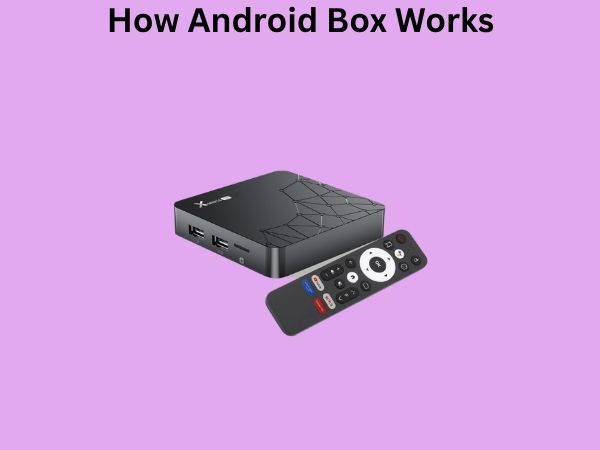
Think of an Android box as the brain of a mini computer that connects directly to your television. It’s essentially a small device, usually about the size of a paperback book or even smaller, that runs the Android operating system. Just like your smartphone or tablet, this box can download apps, stream content, and connect to the internet. The main difference? It’s specifically designed to work with your TV rather than fit in your pocket.
When you plug an Android box into your television using an HDMI cable, you’re essentially giving your TV the ability to do everything a smart TV can do—sometimes even more. It’s like adding a superpower to a device that previously could only display cable channels or physical media.
The Basic Components You Need to Know About
An Android box contains several key hardware components that work together seamlessly. Let me break down what’s happening inside that little box:
- A processor (the box’s brain) that handles all computing tasks
- RAM (random access memory) that helps the device multitask smoothly
- Internal storage where apps and content can be saved
- A wireless chip for WiFi connectivity
- Ports for HDMI, USB, and sometimes Ethernet connections
- A power supply that keeps everything running
How Android Box Connects to Your Television
The connection process is incredibly straightforward, and this is one of the reasons why Android boxes are so popular. You’re not looking at complicated installations or professional setup requirements.
The HDMI Connection: Your Primary Link
The main cable you’ll use is an HDMI cable, which carries both video and audio signals from the Android box to your TV. This is the same technology used in most modern entertainment setups, so there’s nothing new to learn. Simply plug one end into the Android box and the other into any available HDMI port on your television. It’s that simple.
Many people compare this to how easy it is to connect a game console to a TV—because honestly, the process is nearly identical. Once connected, your TV receives a signal from the Android box, and you’re ready to start using all those amazing features.
Power Supply and Additional Connections
Your Android box will need a power source, which typically comes with a small adapter similar to what you’d use for a phone charger. Plug this into an outlet, and the device springs to life. Some boxes also include an Ethernet port if you prefer a wired internet connection instead of WiFi, which can provide more stable streaming for people with spotty wireless signals.
The Operating System: Android Explained
The heart of any Android box is its operating system. Android is the same operating system that powers billions of smartphones worldwide, but in this case, it’s optimized for television use.
Why Android on a TV?
Google, the company behind Android, created a version specifically for TV devices called Android TV. This version has a different interface than smartphone Android because, well, you’re controlling it with a remote, not your fingers. The layout is designed for easy navigation from across the room, with large icons and simple menu structures that make sense on a big screen.
This familiarity with Android is actually a huge advantage. If you’ve ever used an Android phone, you’ll feel right at home navigating an Android box. The app store concept is identical, the settings menu works similarly, and the overall philosophy of customization remains the same.
Different Android Versions and Their Impact
Android boxes come with different versions of the Android operating system, typically ranging from Android 7.0 to the latest versions like Android 12 or higher. Newer versions generally offer better performance, more security features, and improved compatibility with modern apps. When shopping for an Android box, checking which Android version it runs is important—newer is usually better, but even older versions can work perfectly for basic streaming.
How You Control Your Android Box
One of the most practical aspects of an Android box is how simple controlling it can be.
The Remote Control Setup
Most Android boxes come with a remote control, which is typically either a traditional remote or an air mouse (a small keyboard-like device with a trackpad). The remote communicates with the box wirelessly, usually through infrared or Bluetooth technology. You point it at the box, press buttons, and things happen on your screen. It’s exactly what you’re already accustomed to if you’ve ever used a TV remote.
Some advanced remotes even have voice control built in, allowing you to speak commands like “show me action movies” or “open Netflix,” which the Android box then processes and executes.
Alternative Control Methods
Did you know you can also control your Android box with your smartphone? Many people don’t realize this, but it’s incredibly convenient. Once you connect your phone to the same WiFi network as your box, you can download a remote control app and use your phone as a full-featured remote. This is especially useful if you lose your physical remote or want the added functionality of a keyboard for typing passwords or search queries.
Internet Connectivity: The Lifeline of Your Android Box
Without internet, an Android box is essentially a paperweight. The internet connection is what makes all the magic happen.
WiFi Connectivity Options
Most Android boxes connect to the internet through your home WiFi network. During the initial setup, you’ll see a list of available networks, select yours, enter your password, and boom—you’re connected. The box then has access to all the streaming apps and online content you could want.
The quality of your WiFi signal matters significantly. A weak connection can result in buffering, lower video quality, or apps that struggle to load. If you notice these problems, consider moving your Android box closer to your WiFi router or using that Ethernet port I mentioned earlier for a more stable connection.
Bandwidth Requirements and Streaming Quality
Different streaming services require different internet speeds. Basic HD streaming typically needs around 5-8 Mbps, while 4K Ultra HD content demands 25 Mbps or more. If you’re planning to stream on your Android box regularly, you’ll want to ensure your internet plan can handle the load, especially if multiple devices are using the connection simultaneously.
Apps and Content: The Real Strength of Android Boxes
Here’s where Android boxes truly shine. The ability to download and install apps is what transforms your TV experience.
The Google Play Store on Your Television
Just like on your smartphone, an Android box has access to the Google Play Store, an enormous library of applications. Want Netflix? Download it. Hulu? It’s there. YouTube, Disney+, Amazon Prime Video, Kodi, Plex—you name it, and there’s probably an app for it. This flexibility is revolutionary compared to traditional cable boxes that only offer what the cable company decides to show you.
The best part? Many of these apps are free or far cheaper than cable subscriptions. You get to choose exactly what content you want to watch, when you want to watch it.
Free and Paid Streaming Options
Android boxes support every type of content distribution model. You can use free, ad-supported streaming services like Pluto TV or Tubi. You can subscribe to premium services like Netflix or HBO Max. You can even use apps like Kodi to organize your personal media collection if you have films or shows stored on a connected hard drive.
This variety means you’re never locked into a single ecosystem. You have complete control over your entertainment choices.
Processing Power and Performance Explained
Not all Android boxes are created equal, and the processor is a major reason why.
What CPU and GPU Actually Do
The CPU (central processing unit) is the main processor that handles calculations and operations. The GPU (graphics processing unit) specializes in processing visual information. Together, they determine how fast your Android box can load apps, how smoothly menus scroll, and whether you can watch 4K content without stuttering.
Think of the CPU as the chef in a kitchen, and the GPU as the plating specialist. The chef prepares the food (your apps and data), while the plating specialist makes sure it looks beautiful and arrives at your table (screen) at just the right moment.
RAM and Storage: Multitasking and App Collection
RAM is temporary memory that helps your Android box handle multiple tasks. With 2GB of RAM, basic streaming works fine. But if you want to switch between apps quickly without them closing, 4GB or more is preferable. Storage is where apps and files are permanently saved. A 32GB internal storage is standard, but some power users prefer boxes with 64GB or the option to add external storage via USB.
Video Quality and Resolution Capabilities
Modern Android boxes can handle various video resolutions, which directly impacts picture quality on your TV.
Understanding Resolution Standards
Most Android boxes support 1080p Full HD, which is the standard resolution for HD content and looks excellent on TVs up to 50 inches. Many newer boxes also support 4K Ultra HD, which provides four times the pixel density and stunning clarity on larger screens. Some even support 8K, though 8K content is still rare.
Does your TV support these resolutions? That’s important to know. If you have an older TV that only supports 1080p, even a 4K-capable Android box will downscale its output to match your TV’s capabilities.
HDR and Color Technology
HDR (High Dynamic Range) is a technology that makes colors more vibrant and contrast more pronounced. Many modern Android boxes support HDR10 or Dolby Vision, which enhances the viewing experience significantly if your TV and streaming content support these standards. It’s not essential, but it’s a nice feature to have.
Audio Output Options: Surround Sound Possibilities
Video is only half the entertainment experience. Audio quality matters just as much.
Speaker Connections and Audio Formats
Android boxes can output audio through the HDMI cable, which then goes to your TV’s speakers. Many boxes also have optical audio ports for direct connection to soundbars or surround sound systems. This flexibility allows you to build whatever audio setup you prefer, from basic TV speakers to full home theater systems with multiple speakers and subwoofers.
Most boxes support standard audio formats, and many support advanced formats like Dolby Atmos for immersive, three-dimensional sound.
Security and Privacy Considerations
Since your Android box connects to the internet and runs apps, security is worth discussing.
Protecting Your Personal Information
When you log into streaming apps on your Android box with usernames and passwords, that information is stored on the device. Make sure you trust the box you’re using and keep the operating system updated, as updates often include security patches. Also, be cautious about what apps you download—stick to the official Google Play Store when possible, as it has more security screening than third-party app stores.
Updating Your Android Box Regularly
Just like your smartphone, your Android box receives software updates that fix bugs and patch security vulnerabilities. Don’t ignore these updates—they’re important for keeping your device safe and running smoothly.
Common Uses and Real-World Applications
Let me show you practical ways people are using Android boxes every day.
Cord-Cutting and Streaming Entertainment
The most obvious use is replacing cable television. People are saving hundreds of dollars per month by cutting their cable subscriptions and using streaming apps instead. One Android box can give you access to Netflix, Disney+, HBO Max, and dozens of other services simultaneously.
Media Server and Personal Content
If you have a collection of movies, TV shows, or photos stored on your computer or external hard drive, you can use apps like Plex or Kodi on your Android box to organize and stream this content to your TV. It’s like having your own personal Netflix of your own media.
Gaming and Casual Entertainment
Android boxes can run games from the Google Play Store. While they’re not as powerful as dedicated gaming consoles, they’re perfect for casual games, puzzle games, and retro gaming. Some people even connect gaming controllers to their Android box for a console-like experience.
Troubleshooting Common Issues
Even with straightforward technology, occasionally something doesn’t work as expected.
Buffering and Streaming Problems
If your content keeps buffering, the first step is checking your internet connection. Move closer to your WiFi router, or try the Ethernet connection. If that doesn’t help, restart your Android box—this often resolves temporary glitches. You might also need to lower the video quality setting in your streaming app if your internet speed is limited.
App Crashes or Freezing
If an app repeatedly crashes, try uninstalling and reinstalling it. If your Android box feels generally sluggish, clearing cached data from your settings menu can help free up memory. In extreme cases, a factory reset restores the box to its original state, though this erases all your apps and settings.
Comparing Android Boxes to Other Streaming Solutions
You might be wondering how Android boxes stack up against alternatives.
Android Box vs Smart TV Apps
Modern TVs come with built-in apps, but Android boxes offer more app variety, better performance in many cases, and greater longevity. When your TV manufacturer stops updating the software, your TV’s apps become outdated. An Android box can be updated or replaced independently.
Android Box vs Streaming Sticks
Streaming sticks like Roku or Fire Stick are smaller and simpler, plugging directly into HDMI without separate power. Android boxes are bulkier but often more powerful and offer greater customization. Your choice depends on whether you prioritize convenience or capability.
Choosing the Right Android Box for Your Needs
Now that you understand how Android boxes work, how do you choose one?
Key Specifications to Look For
Consider your TV size and resolution capabilities. For basic 1080p streaming, an entry-level box works fine. For 4K content, invest in a more powerful processor. Think about how many apps you’ll use simultaneously—more RAM helps with this. Storage space depends on whether you’ll install many apps or just use the essential streaming services.
Brand Reliability and Support
Established brands like Xiaomi, Nvidia, and Amazon-compatible boxes tend to offer better support and regular updates. Check reviews before purchasing to ensure you’re getting a quality device that will last.
The Future of Android Boxes
Technology is constantly evolving, and Android boxes continue to improve. We’re seeing higher resolution support, faster processors, and more sophisticated AI integration. Voice control is becoming standard, and integration with smart home systems is expanding. As streaming becomes increasingly dominant, Android boxes will likely become even more central to home entertainment setups.
Conclusion
Understanding how an Android box works reveals